
Download latest version at http://www.keprt.cz/progs/samutils/
Release November 2026
Aley's Sam Utils is a package of a few independent utilities for PC AT (Windows & DOS) aimed to Sam Coupé emulation support.
Included utilities:
SMD 5.0 = "Sam Master Dos" [10.11.2026]
This program works with .dsk/.sad images like they were a .zip or .rar packages, i.e. you can view and extract the contents of the disk images.
Version 5.0 brings the full support of writing and bigger MasterDOS directories.
Supported disk image formats: .DSK, .SAD, .SAD.GZ (GZip compressed SAD).
SMD supports both SamDOS and MasterDOS diskettes, including nonstandard disk formats (> 80 files). MasterDOS subdirectories are ignored - all files are listed and extracted as if they were in the root directory.
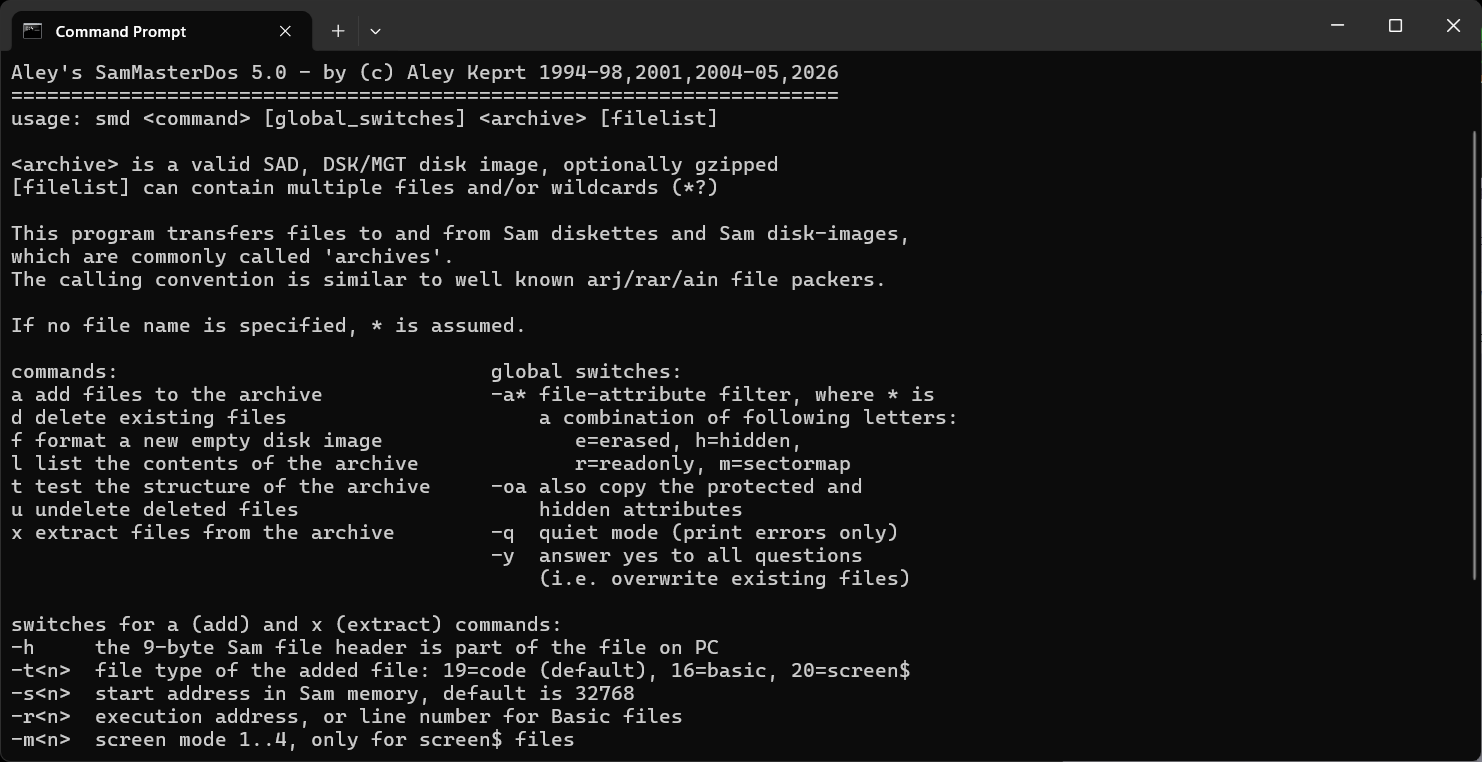
Type smd without any arguments to see more on running the program.
Command line usage: smd <command> [global_switches] <archive> [filelist]
<archive> is a valid SAD, DSK/MGT disk image, optionally gzipped [filelist] can contain multiple files and/or wildcards (*?)
The calling convention is similar to well known arj/rar/ain file packers.
If no file name is specified, * is assumed.
Commands: a add files to the archive d delete existing files f format a new empty disk image l list the contents of the archive t test the structure of the archive u undelete deleted files x extract files from the archive
Global switches:
-a* file-attribute filter, where * is a combination of following letters: e=erased, h=hidden, r=readonly, m=sectormap
-oa also copy the protected and hidden attributes
-q quiet mode (print errors only)
-y answer yes to all questions (i.e. overwrite existing files)
Switches for commands a (add) and x (extract):
-h the 9-byte Sam file header is part of the file on PC
-t<n> file type of the added file: 19=code (default), 16=basic, 20=screen$
-s<n> start address in Sam memory, default is 32768
-r<n> execution address, or line number for Basic files
-m<n> screen mode 1..4, only for screen$ files
Switches for command f:
-l disk label, up to 10 characters
-d directory size in tracks, 4 (default) to 39
the file name decides the format: .sad makes a SAD image, anything else makes
a DSK/MGT one; both are 2 sides, 80 tracks, 10 sectors
Numbers are decimal, or hexadecimal with a $ or 0x prefix.
2SAD 1.01 = "To SAD" [1999]
This program converts among three disk image formats: .DSK, .SAD, .SAD.GZ.
It is mainly intended to easily pack SAD files with GZip compression.
You can also use it to convert .DSK to .SAD and vice versa (including de/compression).
Type smd without any arguments to see more on running the program.
Note: The version is marked as 1.0, and it is 1.01 in DOS, and 1.00 in Windows. Both are the same in functionality.
STI 1.20 = "Sam Text Importer" [03.07.2026] - requires Microsoft .NET Framework 2.0 or later
This program imports text files from Sam Coupé. It does import both file format and code page.
This is a remake of my very old program called Unicon, which was able to import a huge number of Sam text file formats to the variety of PC file formats (including bold, italics and other text attributes which vere supported by some Sam Coupe text editors).
STI can import Axword, Tasword 2 files and Desktop files, encoded in US English ASCII or Czech encoding.
This program may also be run in Linux and MacOS using Mono environment.
Command line usage: sti <infile> <outfile> [switches]
Switches:
-ic <Ascii|Tasword2CZ|Axword|Desktop|Auto> ... set input coding
-oc <Ansi|Ascii|UTF8|Unicode> ... set output coding
-if <Tasword2|Axword|Desktop> ... set input file format
-f ... overwrite an existing output file
-notrim ... keep the trailing spaces of each line
-bom ... write a byte order mark (UTF8 and Unicode only)
SBK 5.00 = "Sam Backup" [01.04.1998]
This program is intended to make a backup of a real diskette and restored the backup. It converts real diskettes to image files and vice versa.
The current version runs in Windows 95/98/ME and may also run in pure MS-DOS.
It isn't compatible with Windows NT (2000/XP/10/11 etc.).
Type smd without any arguments to see more on running the program.
Important note:
All these programs are command line utilities. They don't have any GUI! To run these program from within a Windows, you should at first start cmd from Start/Run menu to start the console window (looks like an MS-DOS window). Then you can run these utilities from withing that console window. You can also use command line of Total Commander, or similar file manager.